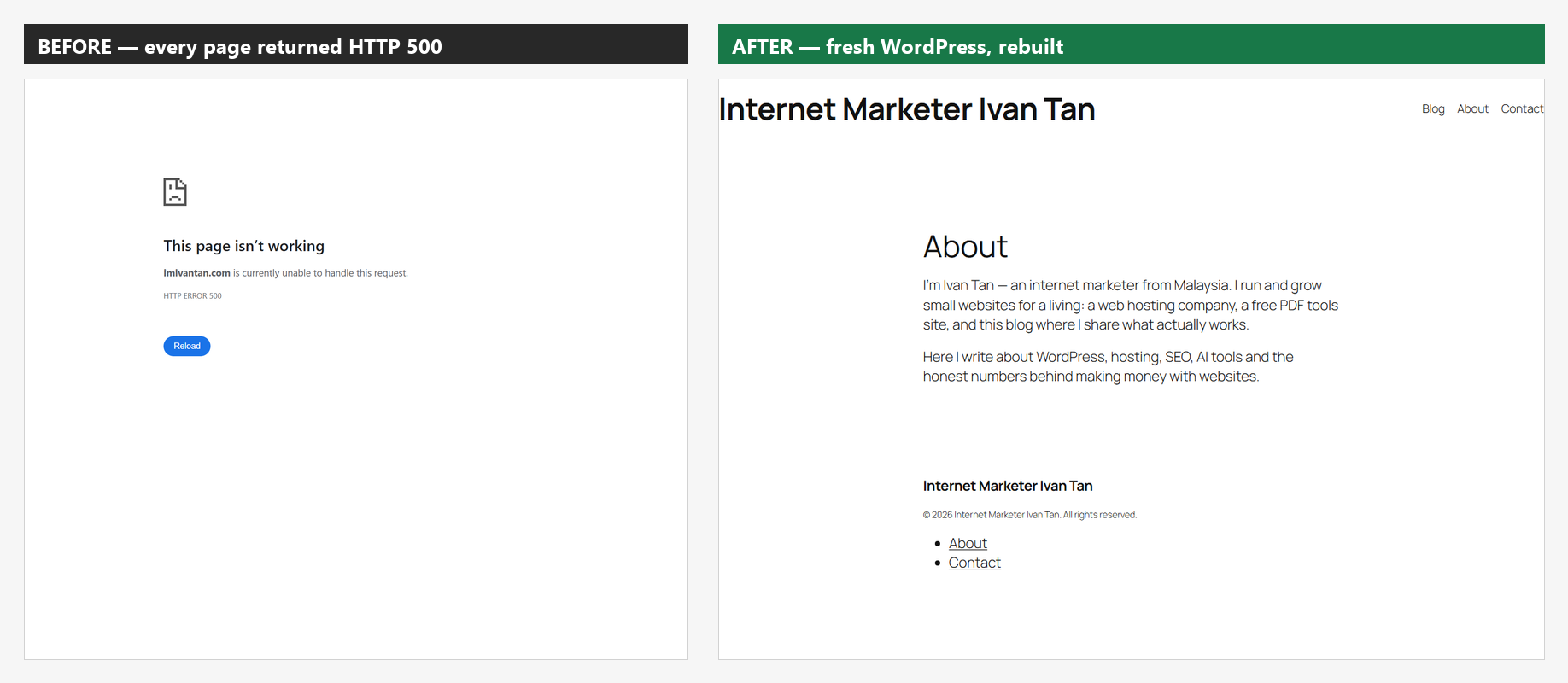
On October 5, 2026, I opened imivantan.com and got a white page with five words: This page isn’t working. HTTP ERROR 500.
I assumed it was a plugin conflict. It wasn’t.
When I checked robots.txt, I found a list of sitemaps I had never created. When I opened sitemap.xml, my domain was serving a Japanese hardware store — complete with a “25th anniversary sale” banner, power tools, kerosene delivery and machine rental.
My blog had been hacked. The attacker wasn’t interested in my content — they were using my domain to rank Japanese e-commerce pages.
This is what I found, why I chose to rebuild instead of repair, and the checklist I used to come back clean.
The short version
- Every page on the site returned HTTP 500, while parts of the domain were still serving spam.
- robots.txt had been rewritten to advertise sitemaps I never created.
- sitemap.xml rendered a fake Japanese storefront in HTML instead of XML.
- The spam sitemaps were regenerated daily — the kit was still active.
- Wayback Machine showed the site was healthy on 18 June 2026, so the compromise happened after that.
- The old WordPress install couldn’t be trusted, so I rebuilt it from scratch.
What I actually found
The homepage was dead. So was every other page I tried — posts, categories, even wp-login.php. That’s the HTTP 500 error in the screenshot below.
But robots.txt was alive, and it looked like this:
User-agent: *
Allow: /

Sitemap: https://imivantan.com/?sitemapindex.xml
Sitemap: https://imivantan.com/?sitemap254.xml
Sitemap: https://imivantan.com/?sitemap113.xml
Sitemap: https://imivantan.com/?sitemap61.xml
Sitemap: https://imivantan.com/?sitemap177.xml
Sitemap: https://imivantan.com/?sitemap230.xml
Sitemap: https://imivantan.com/goods.php?sitemap390.xml
I have never used sitemap files with random numbers in the filename. I have never had a goods.php. And my site has never sold anything.
The sitemap index pointed to hundreds of pages like /products/suicide/p072000115 and /composition/charm/n39zdzba245px.shtml. Opening the sitemap URL itself produced this:
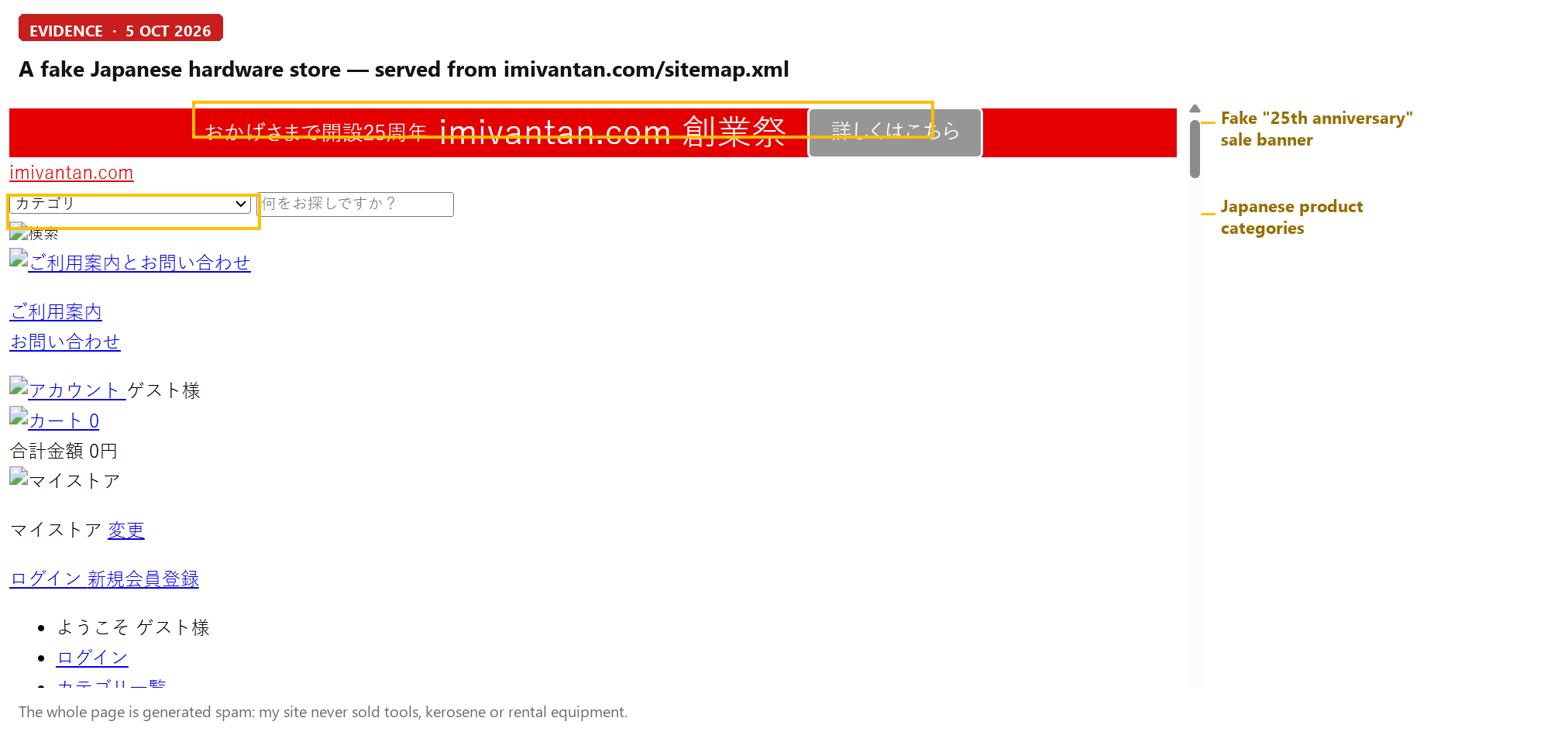
Every spam URL I checked had a <lastmod> date of that same day. This wasn’t an old infection sitting quietly in a corner — the kit was generating new pages on a schedule.
What is the “Japanese keyword hack”?
It’s a known pattern, documented by Google as the Japanese keyword hack. Attackers compromise a site — very often an outdated WordPress install — and inject pages, sitemaps and redirects that target Japanese search queries. The pages usually promote products the site owner has nothing to do with: tools, supplements, manga sets, rental services.
The site owner often doesn’t notice, because the hacked pages are hidden from normal visitors or served only to search engines. In my case the main site was already broken, which is how I found it.
Why should you care even if your site is small? Because the damage isn’t the spam pages themselves. It’s what Google does when it finds them: security warnings, manual actions, lost trust — and a domain that suddenly has to prove it’s legitimate again.
The timeline
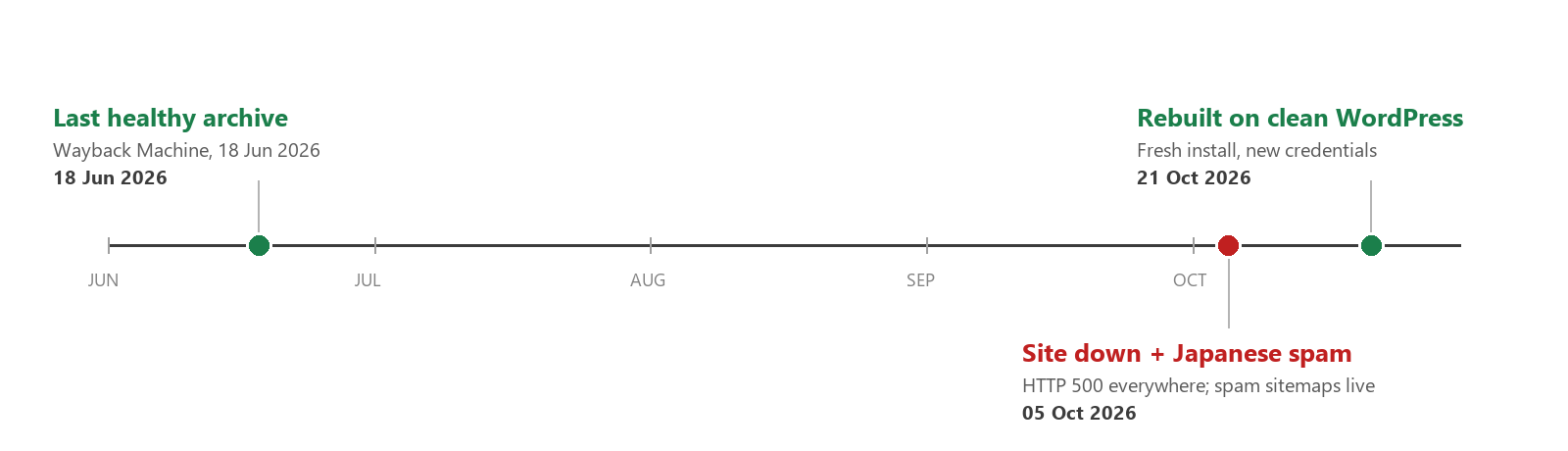
Three dates matter. The site was healthy in the Wayback Machine on 18 June 2026. By 5 October it was down and serving spam. I rebuilt it on 21 October.
How I diagnosed it (five checks you can run today)
- Check the status code.
curl -I https://yourdomain.com/— a 500 on every page usually means the PHP application is broken, not that the whole server is down. - Read robots.txt. Unknown sitemap URLs are the fastest red flag. Attackers rewrite this file because search engines read it first.
- Open sitemap.xml. It should be XML. If it renders a web page — especially in another language — your rewrites have been hijacked.
- Check the Wayback Machine. The CDX API gives you a quick history:
web.archive.org/cdx/search/cdx?url=yourdomain.com*&output=json. Find the last capture that looks normal. - Open Google Search Console. Look at Security Issues and Manual Actions. If there’s a hack warning, you’ll see it there before you see it in traffic.
Why I rebuilt instead of cleaning
I could have tried to remove the spam files and patch the old install. I didn’t, for four reasons:
- The site was fully down. The old install wasn’t just infected — it wasn’t serving anything.
- I couldn’t confirm the entry point. Without knowing how they got in, “cleaning” is guesswork. Backdoors are designed to survive cleanups.
- There was no verified clean backup. A backup taken after the compromise just restores the compromise.
- The content was small. Around ten posts — recoverable from the Wayback Machine and my own notes. A fresh install was faster and safer than forensics on a dead site.
If you have a backup you know is clean, restoring is a perfectly good option. If you don’t — rebuild. Your site is not worth more than your domain’s reputation.
The recovery checklist I used
- Preserve evidence first. Screenshot the error page, robots.txt and a few spam URLs. You’ll need them for your host, your developer and Google Search Console.
- Check the server, not just the site. Look at other sites on the same hosting account, cron jobs, mail logs, FTP/SSH users and hosting panel accounts. One hacked site on a shared server is everyone’s problem.
- Rebuild or restore. Fresh WordPress, or a backup you can prove is clean. Update core, themes and plugins before adding anything else.
- Rotate every credential. WordPress admin, database, SFTP/SSH, hosting panel, mailbox, registrar. All of them — assume the old ones are known.
- Harden the new install. Security plugin, two-factor authentication, no unused plugins or themes, XML-RPC disabled if you don’t use it, file editing off.
- Clean up for Google. In Search Console, check Security Issues, then submit a fresh sitemap and request a review if you were flagged. Make sure old spam URLs return 404 or 410.
- Set up backups you will actually test. Automatic, off-server, and restore one to prove it works.
- Monitor. Uptime monitoring plus a monthly look at robots.txt and sitemap.xml. Ten minutes a month is cheaper than a rebuild.
What I changed on the new site
The new install is deliberately boring. A clean WordPress, the default theme, two plugins, one admin account with a unique password stored in a password manager, and an email address on my own domain for site notifications.
I also cleaned out the demo content that came with the install — sample pages, placeholder navigation, a footer full of links to nowhere. A small thing, but if you’re rebuilding anyway, start with a site you’d be happy to show someone.
Still on the list: a security plugin with login protection, scheduled off-site backups, and Search Console verification for the new domain setup. I’ll write about those as I finish them.
What this actually cost me
About two hours of diagnosis, an evening of rebuilding, and a domain that now has to earn back trust. No dramatic traffic loss to report — the site was small and the blog was just starting. That’s the honest version, and it’s exactly why I didn’t try to save a broken install.
Five things I’d tell anyone running WordPress
- Your robots.txt and sitemap are public. Check them once a month. Most owners never do.
- WordPress is a target. Not because it’s insecure by design, but because it’s popular. Updates are not optional.
- A backup you haven’t restored is not a backup. Test one before you need one.
- Hacks are usually invisible. This one didn’t deface my site — it quietly turned my domain into someone else’s storefront.
- Own your platform. A self-hosted WordPress install is what let me rebuild in hours instead of waiting on a platform’s support queue.
What’s next
Now that the site is clean, the real work starts: publishing consistently, getting indexed again, and documenting what actually moves the needle for a small site in 2026.
If you run WordPress, open yourdomain.com/robots.txt right now. If you see sitemap URLs you don’t recognize, start with step one of the checklist above — and don’t wait for the traffic to tell you something’s wrong.
Ivan.T builds and runs small websites, including a hosting company and a PDF tools site. More about me.
Leave a Reply